Scout for Mac
Your agents, live in the notch.
Scout is a scout for your AI agents. It finds the Claude Code and Codex sessions running on your Mac and brings them together in the notch, each one a cute pixel character with a face of its own. See who is working, who needs you and who is done, right by the camera.
Coming soon to the Mac App StoreFree
Scout 1.0.6 · For macOS 14 and later. No account. No ads.
Meet your agents
Every agent gets a face.
Scout goes out, finds the agents at work on your Mac and brings them together. Each one becomes a tiny pixel character with a face of its own: its own hair, cap or bow, its own colours and skin. Claude Code's agents lean orange and Codex's lean green. You can tell at a glance what each one is up to.
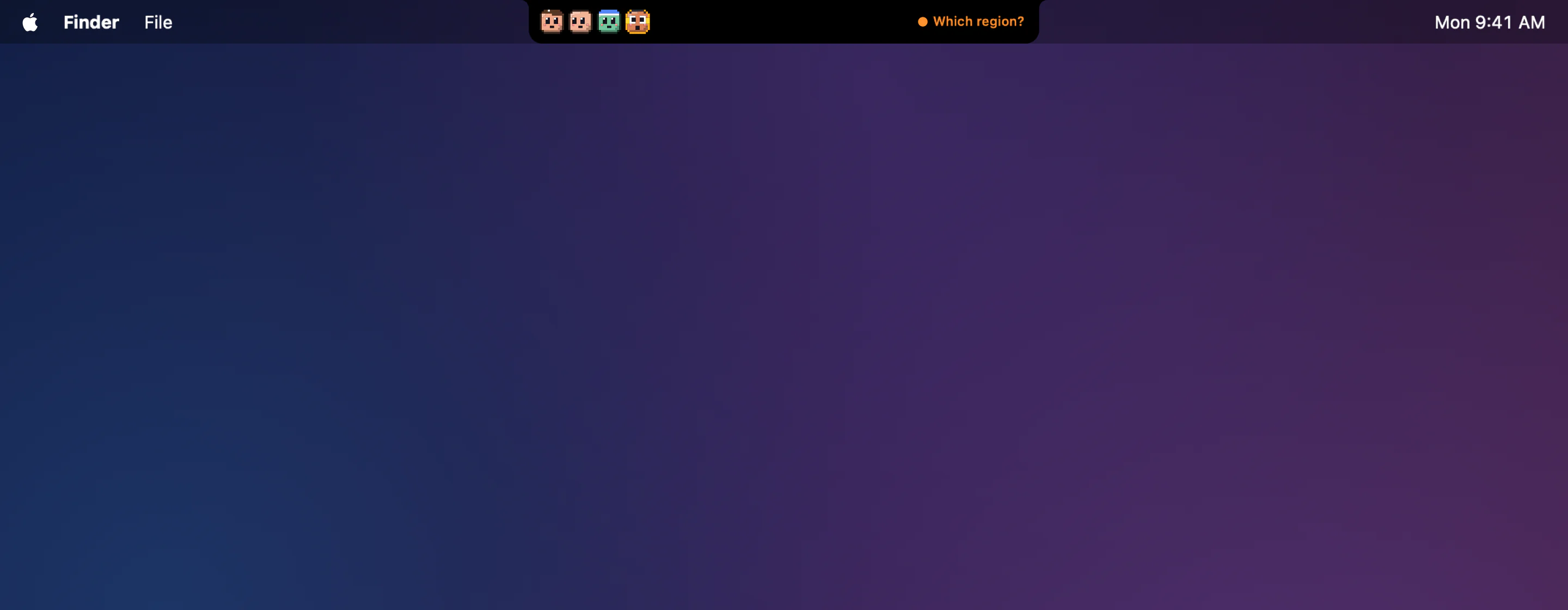
Right by the camera.
Up to four faces, one for each agent. News shows on the right for a few seconds: the latest thing a waiting agent said, or how far the busiest one has got.
One screen. Nothing else.
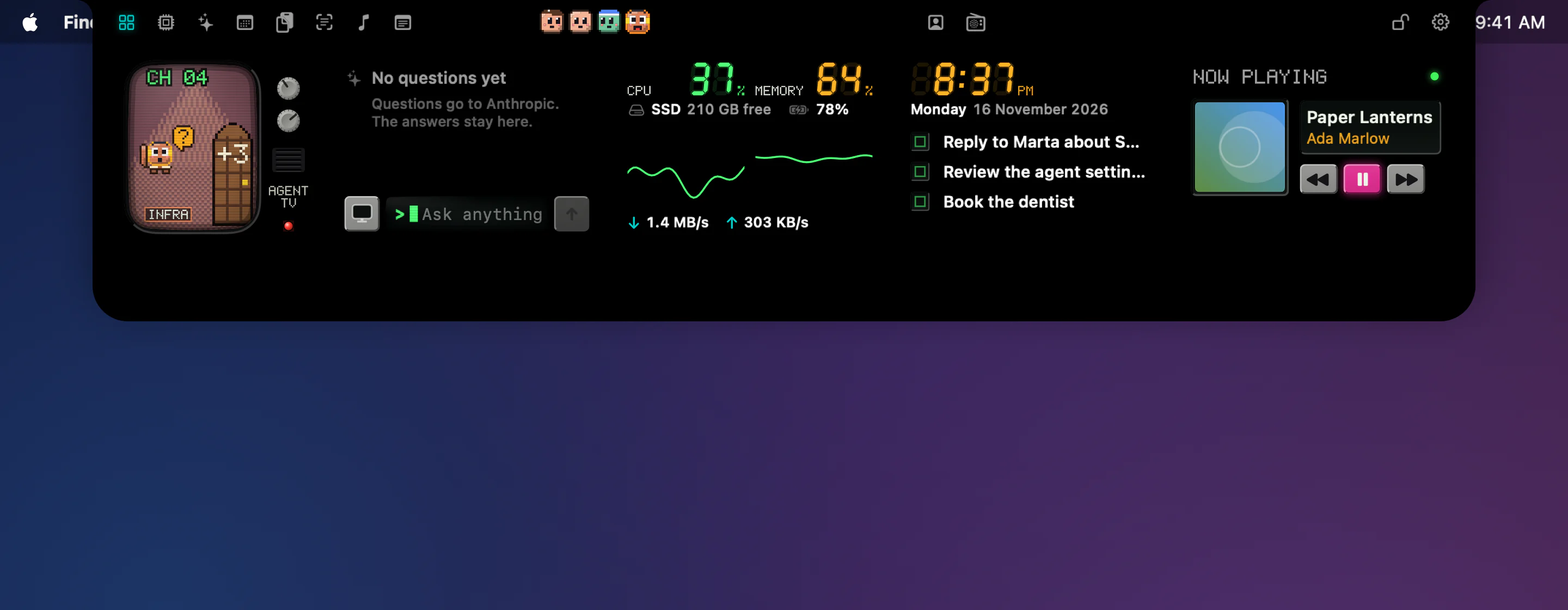
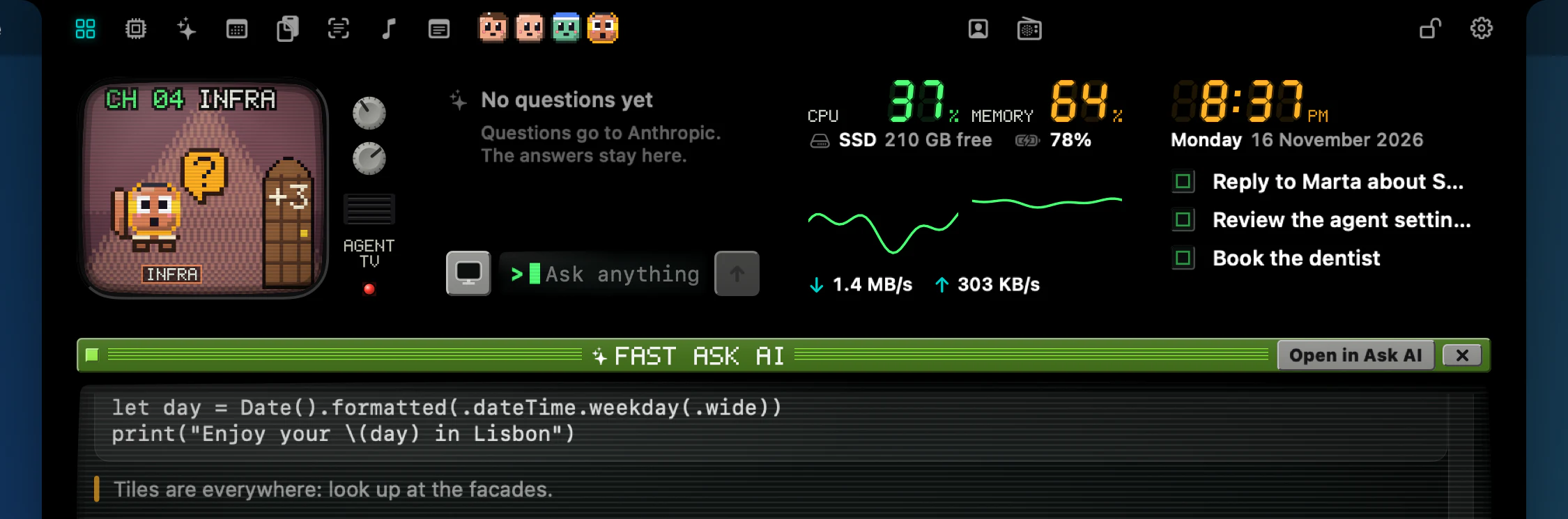
The open notch holds your agents on a little TV, a quick Ask AI line, the Mac's load, today, and what is playing.
The dashboard
Widgets, not tabs.
The open notch is one black screen of widgets. Things that only matter while they are live, like a meeting about to start or a timer, appear by themselves, and so can downloads and AirPods once you switch them on in Settings. The little icons along the top switch between views, and the lock keeps your favourite one as the view the notch opens on.

- Agent TVYour agents on a little CRT set, the ones that need you first, and a small door with a count for the rest.
- Ask AIType a question and the answer opens right there.
- CPU and memoryThe Mac's load in glowing digits, with the disk's free space and the battery, and on the last line the internet speed, down and up. A click opens Activity Monitor.
- TodayThe time and date, your next meetings with a Join button for video calls, and your to-dos.
- Now playingShows up while music plays.
The Agents view
A little place for your agents to live.
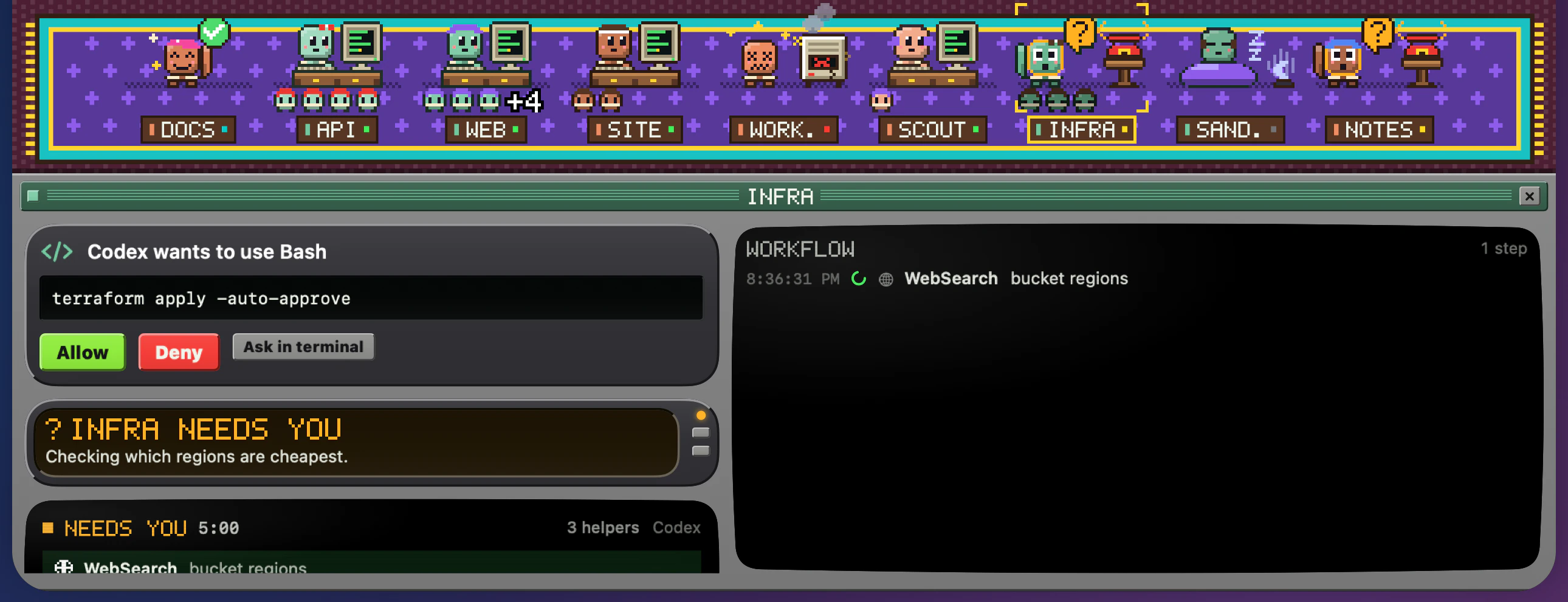
Scout brings your agents together in one room from the 90s. Open the Agents view and every running agent is there, with its own spot, its own pose and its own face, so you can read the whole room in one glance.

- Needs youHand up, a question mark and a red telephone.
- WorkingAt its computer, with text running on its screen.
- HelpersSubagents stand on the floor beneath their agent, with a count when there are many.
- FinishedA green tick and a smile.
- StoppedDizzy, next to a smoking machine.
- AsleepOn a beanbag with a night light.
- The roomThe window shows the real day or night, and the clock your real time.
Click an agent.
A window opens under the room: what it is doing, its steps, and how far through its to-dos it is. With the optional hooks, Allow and Deny are right there when it asks for something.
Answer from the notch
Answer without switching windows.
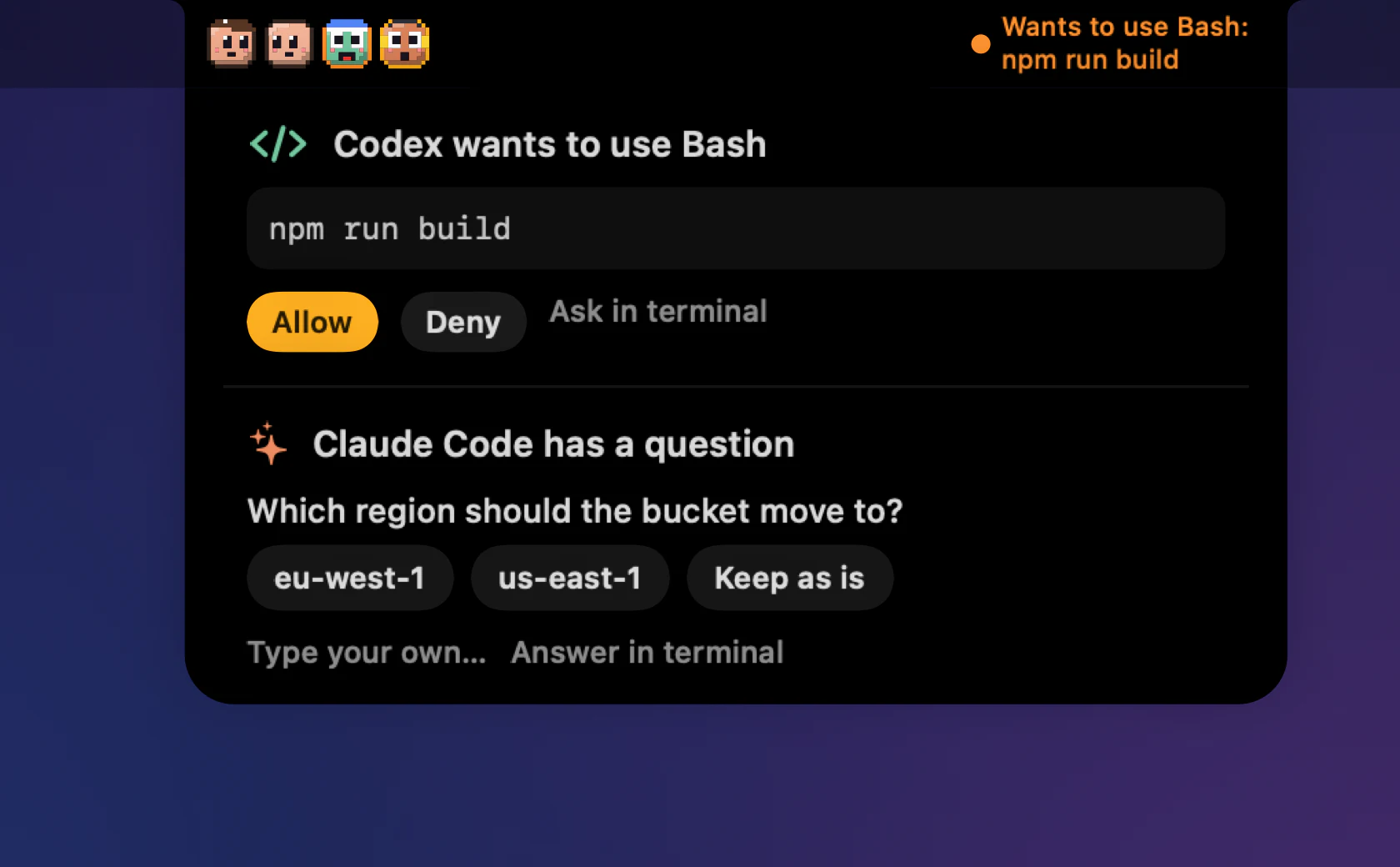
When an agent asks for permission, or Claude Code has a question, it appears under the notch. Allow, deny, tap an option or type your own answer, and the agent carries on.
This part is optional. To switch it on, open Settings › Agents, click Connect Claude Code… (or Connect Codex…) and choose the .claude (or .codex) folder in your home folder. Disconnect takes it away again. Without it Scout simply watches, and the agent asks in its terminal as usual.
Ask AI
Ask AI, right in the notch.
Ask Claude or GPT with your own key. Type in the dashboard and the answer opens right there. Open the Ask AI view for chats of their own, and drag the notch taller for long answers.
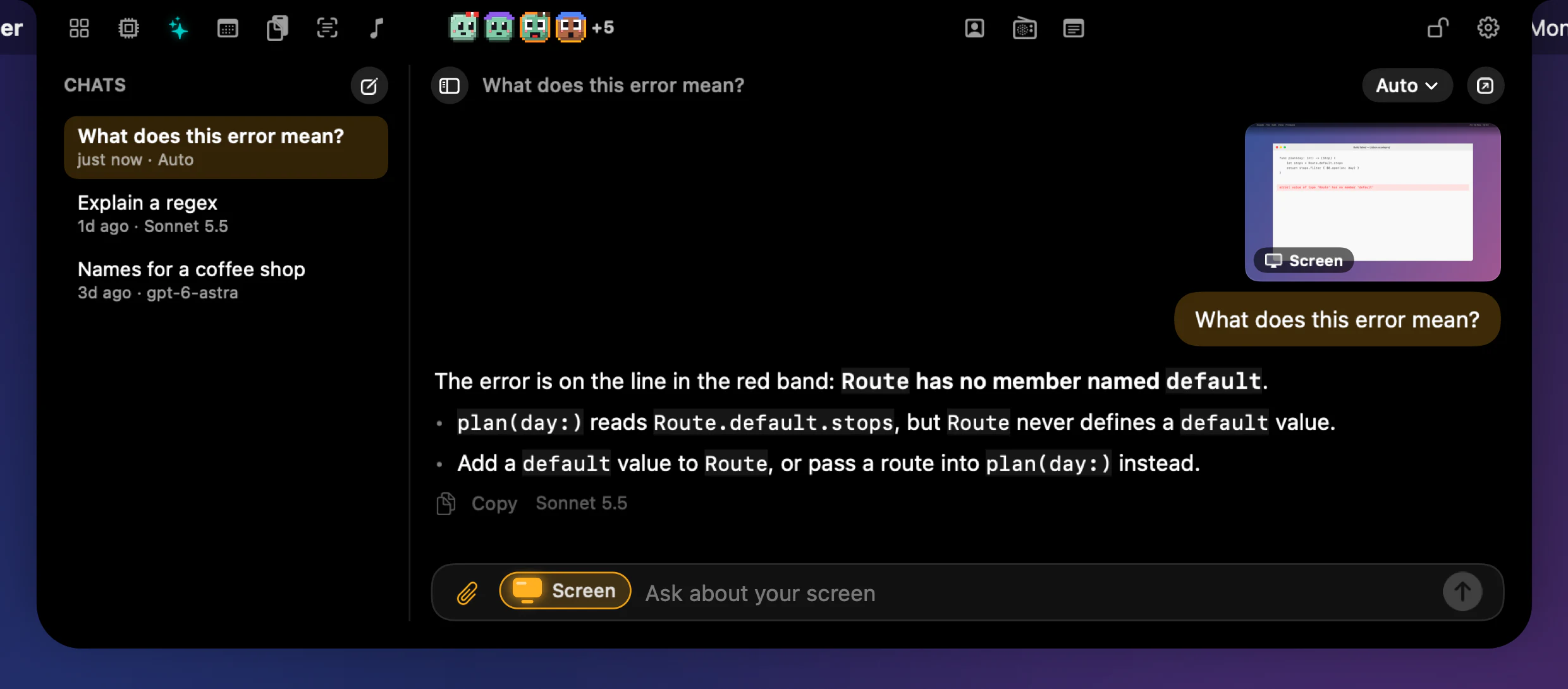
Ask about your screen.
Switch on Screen and every question carries a picture of your screen, with Scout's own windows left out. It starts off, and switches itself off again when the notch closes.
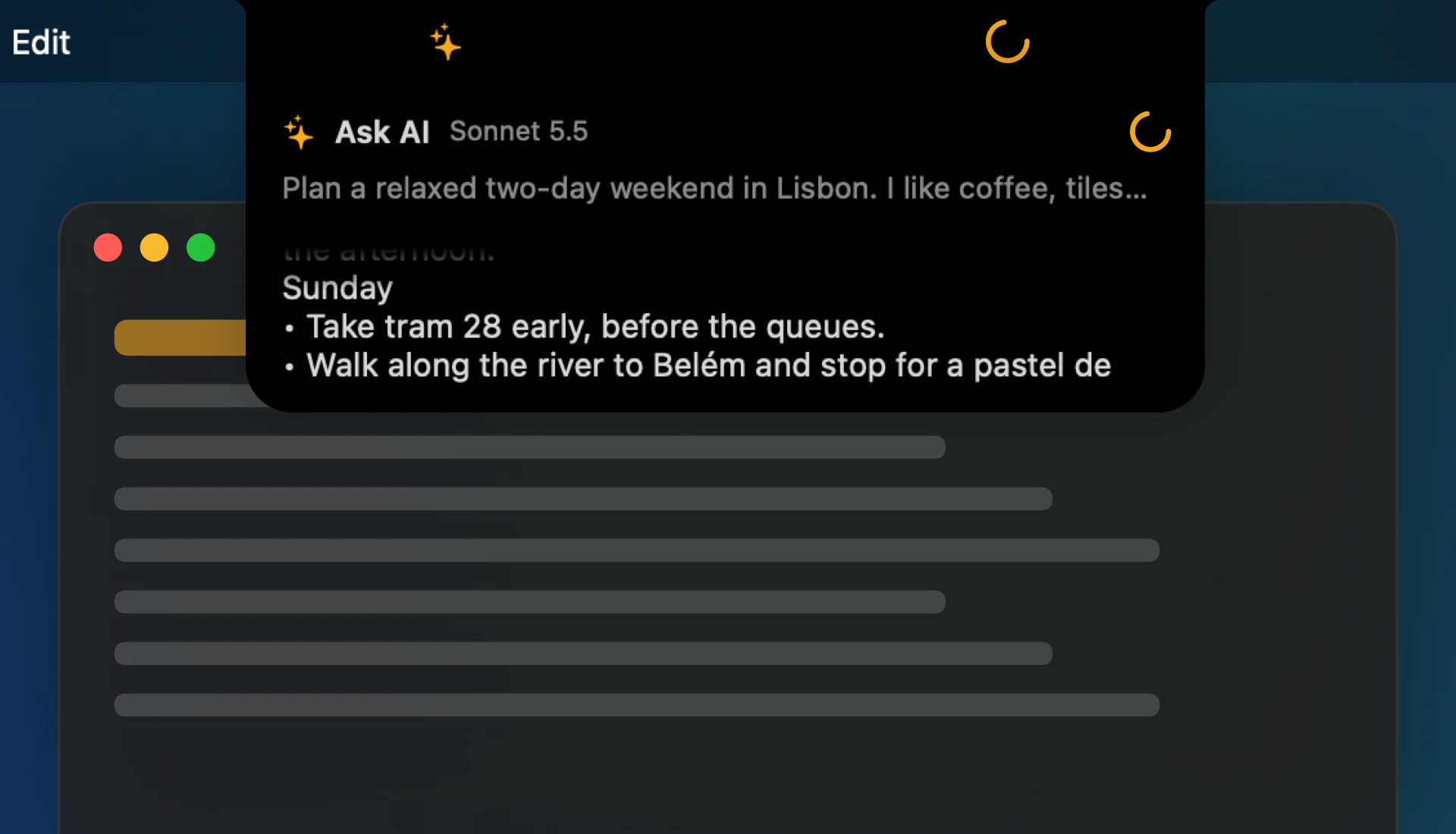
Walk away. It keeps writing.
If you close the notch before an answer is finished, the answer does not stop. It drops down from the notch and keeps writing, and a click on it takes you back to the Ask AI view.
And the rest of the notch
Everything a notch can hold.
Scout works on Macs with or without a notch. It can sit on external displays too: choose where in Settings › Notch.
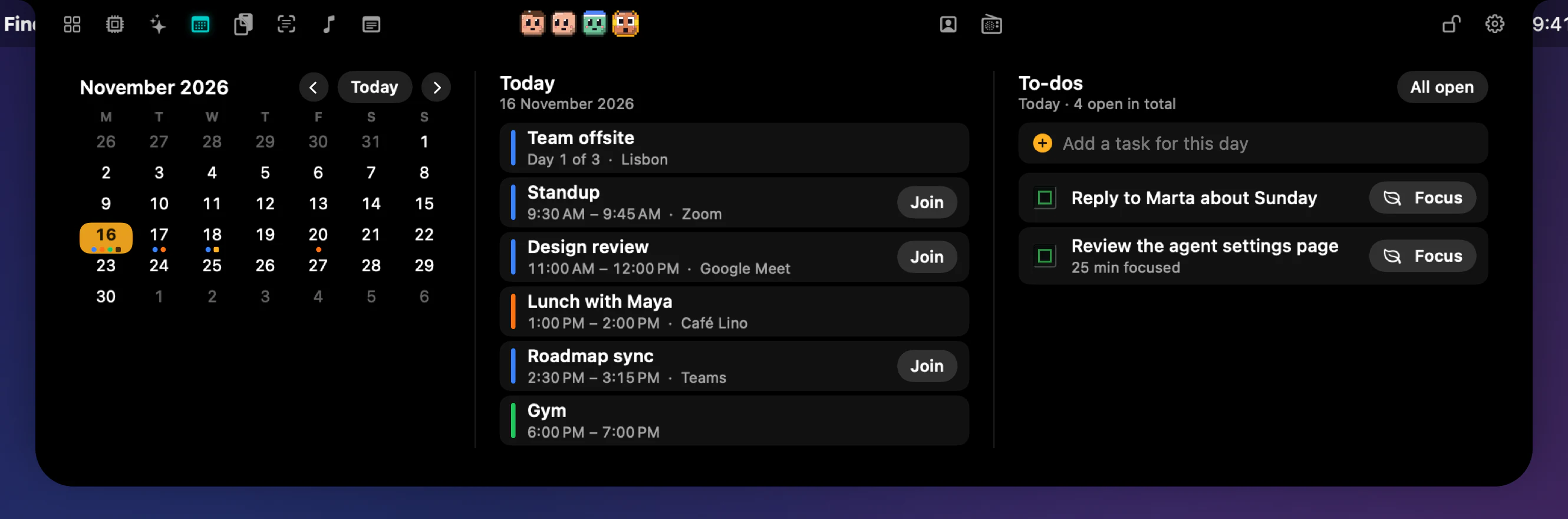
Calendar and to-dos
The month, today's agenda with a Join button for Zoom, Meet, Teams and Webex calls, and your to-dos, all in one view.
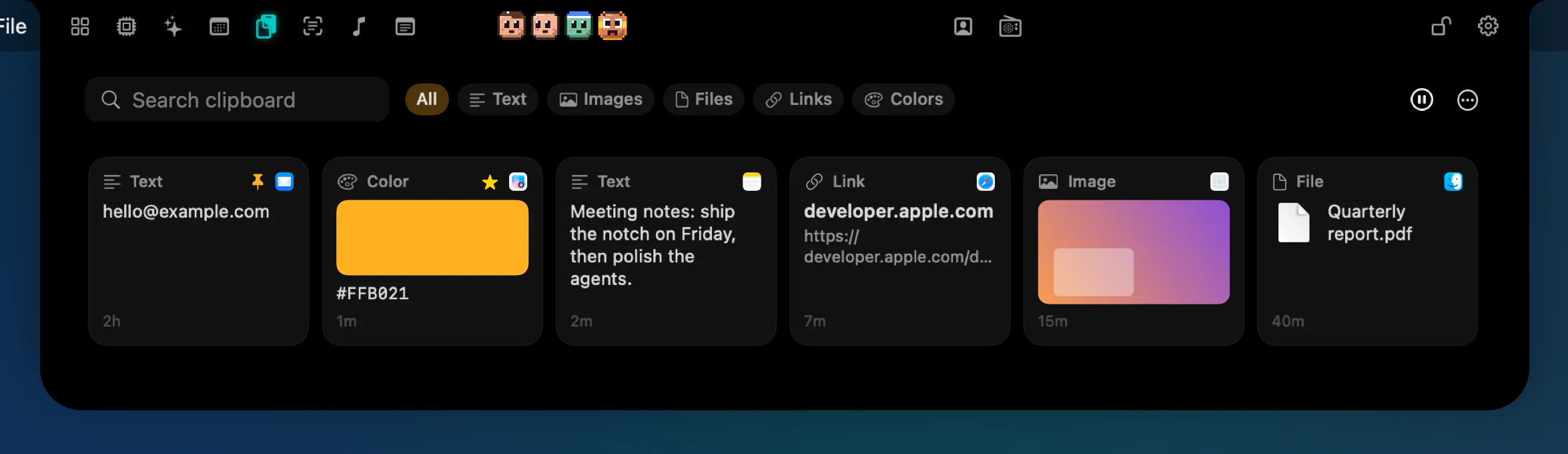
Clipboard
Your recent copies, searchable. Items that password managers mark as secret are skipped, and you can pause it for private moments.
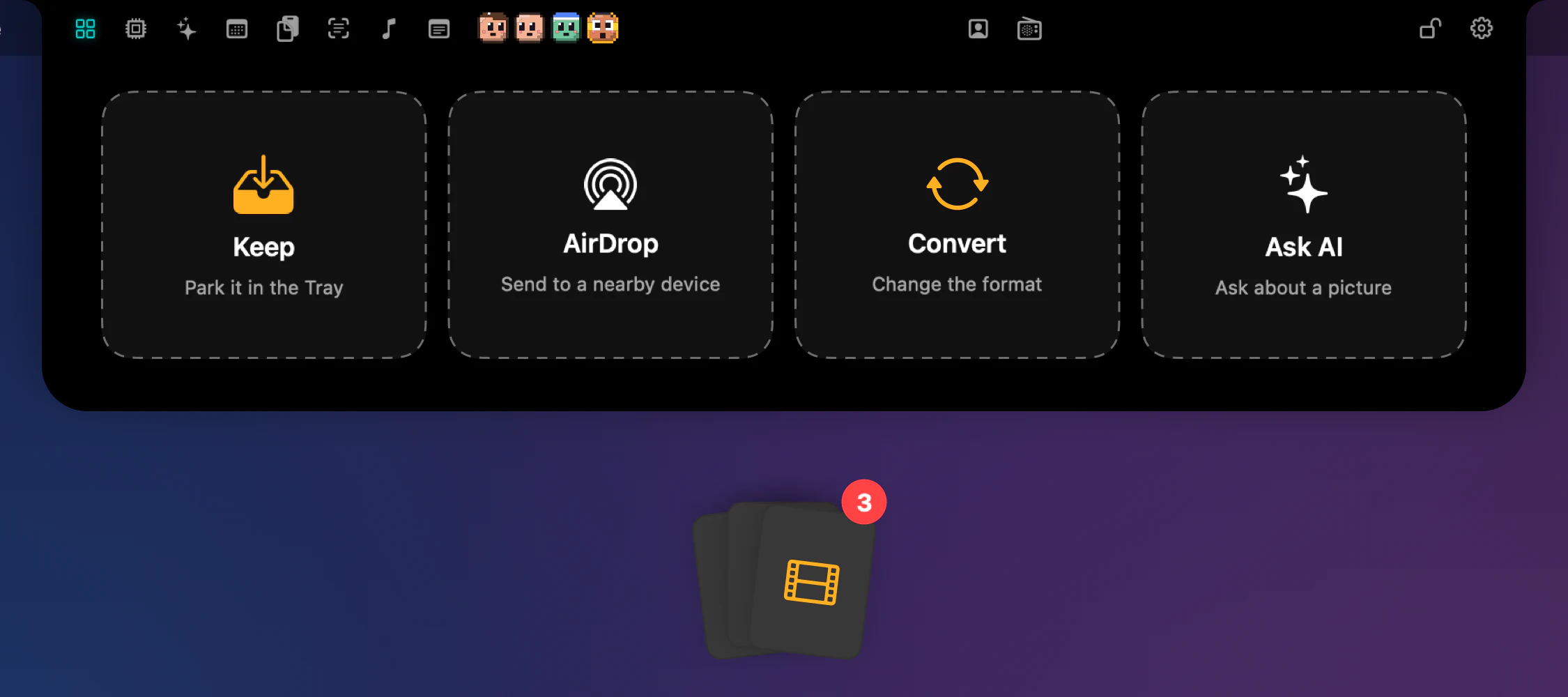
Drop files on the notch
Keep them in the Tray, AirDrop them, convert them on the spot, or ask AI about a picture.
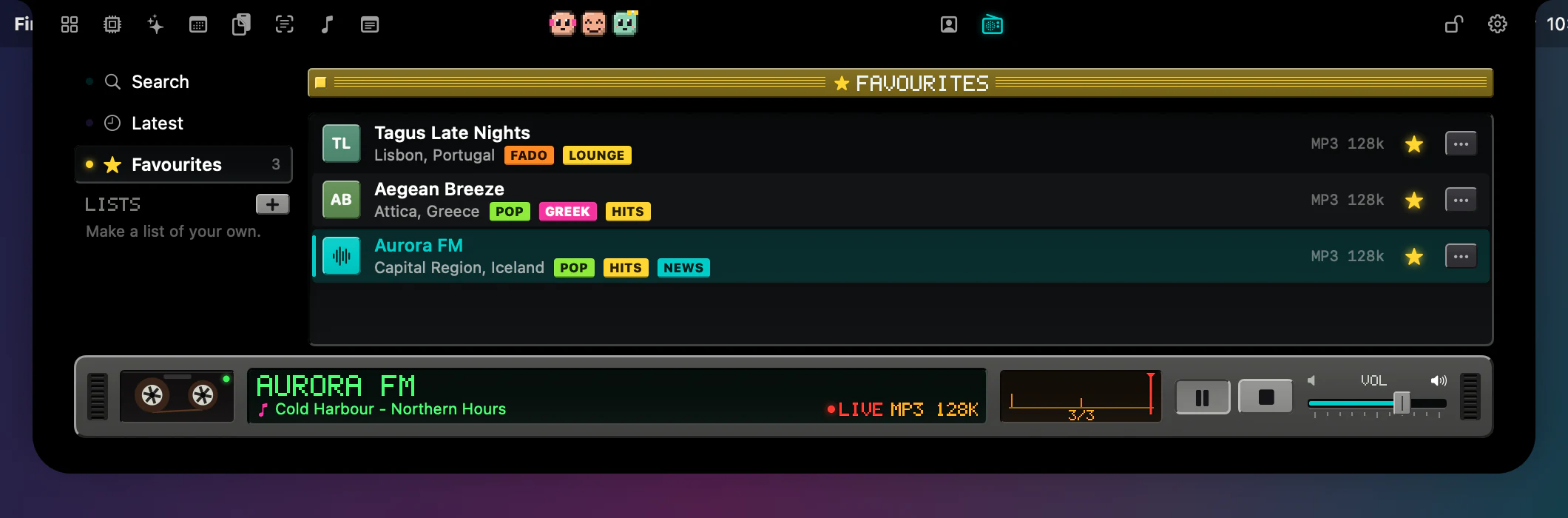
Radio
A boombox in the notch. Find stations by place, keep favourites and make your own lists.
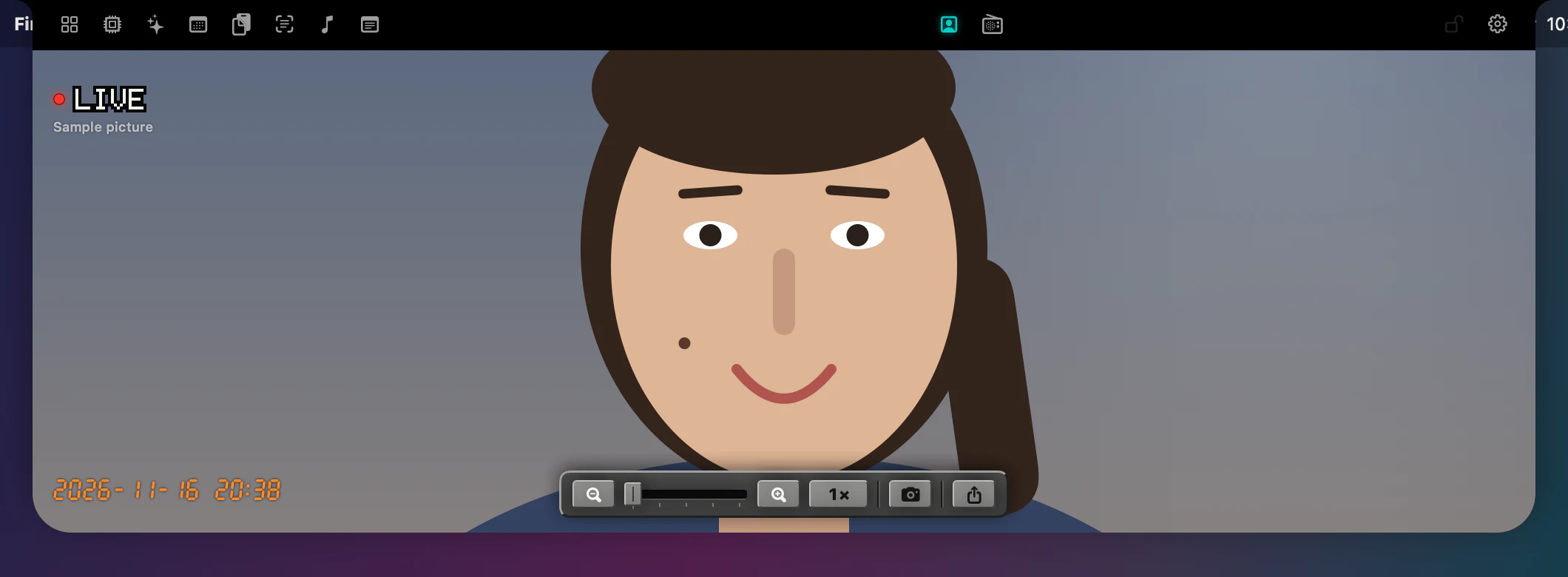
Mirror
Your camera as a little viewfinder. Click to zoom. Nothing is recorded.
Also in the notch
- Prompter. A teleprompter right under the camera that follows your voice.
- Music. What is playing, with the keys.
- Notes. Small and quick.
- Live activities. Timers and your next meeting and, once you switch them on, downloads and AirPods, only while they are live.
Two looks
8-bit or minimal.
The 90s look is on by default: pixel agents, glowing digits, a CRT set. Switch it off in Settings › Appearance and everything turns plain: flat shapes, the system font, simple lists and bars. The faces by the camera give way to a small chip symbol and a count, and the Agents view becomes a list with the chosen agent's whole history beside it.
Appearance also holds one System, Light or Dark setting for Scout's windows and the notch together, an accent colour, and a Classic or Glass notch in three sizes.


Free, private, yours
Small, quiet and entirely yours.
Free
No price, no purchases, no ads and no account. Every feature is included.
Private
Scout collects nothing. What it keeps stays on your Mac, and the few features that go online are listed in the privacy policy.
A quiet reader
Scout reads the progress files your agents write while they work, and keeps nothing from them beyond what you see in the notch.
Your key
Ask AI talks straight to the provider you choose, with your own key.
Let Scout find your agents.
A small, free app for your Mac, and a notch with something to say.
Coming soon to the Mac App StoreFree
Scout 1.0.6 · For macOS 14 and later, with or without a notch.